Dispatch Management
Manually dispatch, reroute, and rebalance deliveries in real time. Control orders, drivers, and routes from a single dispatch interface built for high-volume cannabis delivery.
84 Orders
Dispatching live
4 Drivers
All on route
Map Mode
Drag-and-drop
Live Tracking
All drivers visible
Auto Assign
Smart routing
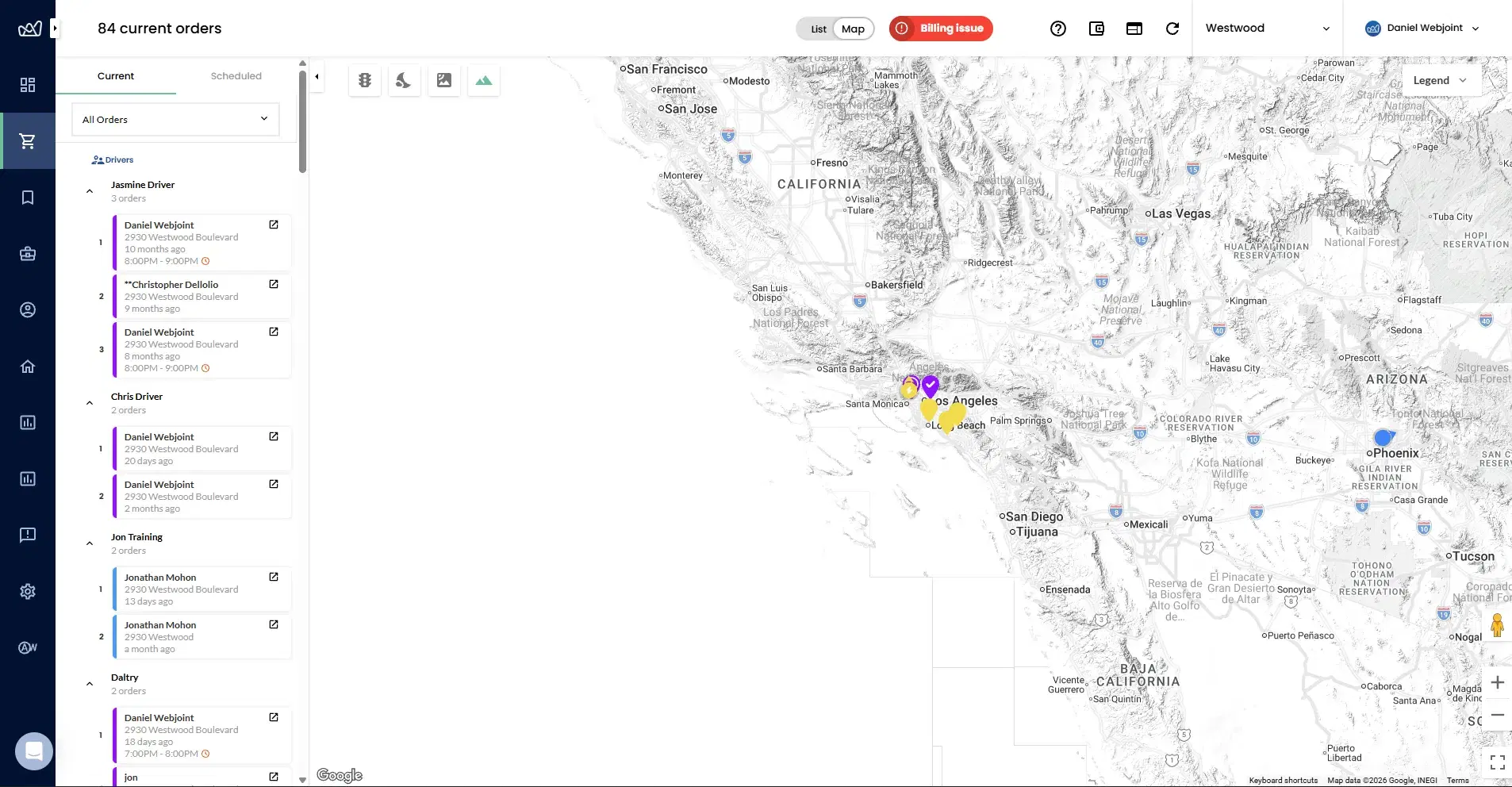
Your Command Center for Live Deliveries
Dispatch management is where your dispatchers and managers control live delivery operations. Every active order, every driver, every route is visible from one screen.
Whether you run dispatch fully automated or prefer hands-on control, WebJoint gives you the flexibility to manage your fleet the way your operation demands.
Orders come in
ASAP and scheduled orders flow into your dispatch queue automatically.
Assign to drivers
Let automation assign or pick the driver yourself from the dispatch screen.
Monitor and adjust
Track progress in real time and reroute if conditions change.
Complete deliveries
Drivers confirm delivery and your records update instantly.
Automatic
Orders auto-assign based on routing logic, driver proximity, and zone coverage. Your fleet stays busy without manual intervention.
Manual
Assign or reassign any order to any driver at any time. Manual assignments override automated decisions instantly.
Hybrid
Let automation handle routine assignments while you step in for exceptions, priority orders, or rebalancing.
Run Dispatch Your Way
Every delivery operation is different. WebJoint lets you choose how much control you want over order assignment. Auto-assign everything, handle it all manually, or mix both approaches depending on the situation.
Dispatch actions can happen from the order view, the dispatch screen, or map mode. You always have multiple ways to assign and adjust.
Handle High Volume Without the Bottleneck
The order list view gives you a table of every delivery order in your queue. Filter, sort, and select multiple orders to assign them in bulk instead of one at a time.
ASAP Orders
ASAP orders appear at the top of your queue and are flagged for immediate assignment. Assign individually or select multiple for batch dispatch.
Scheduled Orders
Scheduled orders show their delivery window and can be pre-assigned to drivers before the window opens. Plan your routes ahead of time.
Bulk Assignment
Select multiple orders using checkboxes, then assign them all to a single driver or distribute across your fleet in one action.
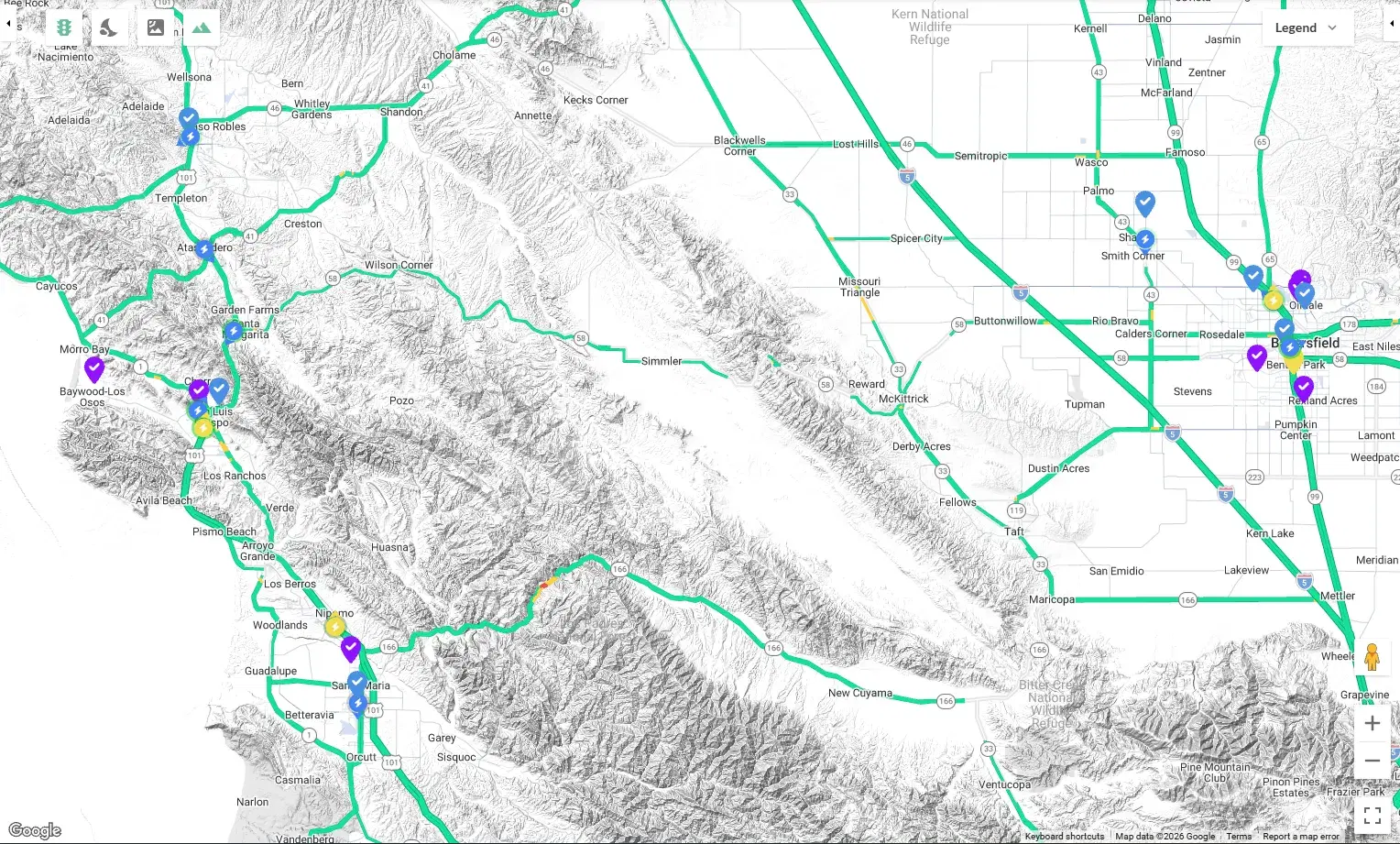
Reroute Deliveries Without Leaving the Map
Map mode gives you a bird's-eye view of your entire delivery operation. Every driver, every order, and every route is visible on a single map. Drag and drop orders between drivers to rebalance your fleet in seconds.
See Exactly What Every Driver Is Doing
Drill into any driver to see their full context. Dispatchers can quickly rebalance routes and reassign orders based on real-time information without switching between screens.
Driver status
See if a driver is on route, idle, returning, or paused.
Assigned orders
View every order assigned to the driver and its current status.
Active route
See the driver's full route with stop order and estimated times.
Zone and inventory
Check zone assignments and whether the driver is fulfilling from a kit or the warehouse.
Paused Vehicles Blocked
If a vehicle is paused, it cannot receive new assignments. This prevents orders from being sent to drivers who are unavailable or off-shift.
Dispatcher Overrides
When automation assigns an order incorrectly or conditions change, dispatchers can override the assignment and reassign to any available driver immediately.
Kit-to-Warehouse Routing
If a driver's inventory kit does not have the required products, WebJoint routes the order to a warehouse driver instead, keeping fulfillment running smoothly.
Override Automation When You Need To
Automation handles the routine. But when a driver calls in late, a priority order comes in, or inventory shifts mid-day, you need manual control. WebJoint gives you both.
Your online menu filters product visibility based on zone and inventory assignment. Customers only see what is available for their location, which reduces dispatch exceptions before they happen.
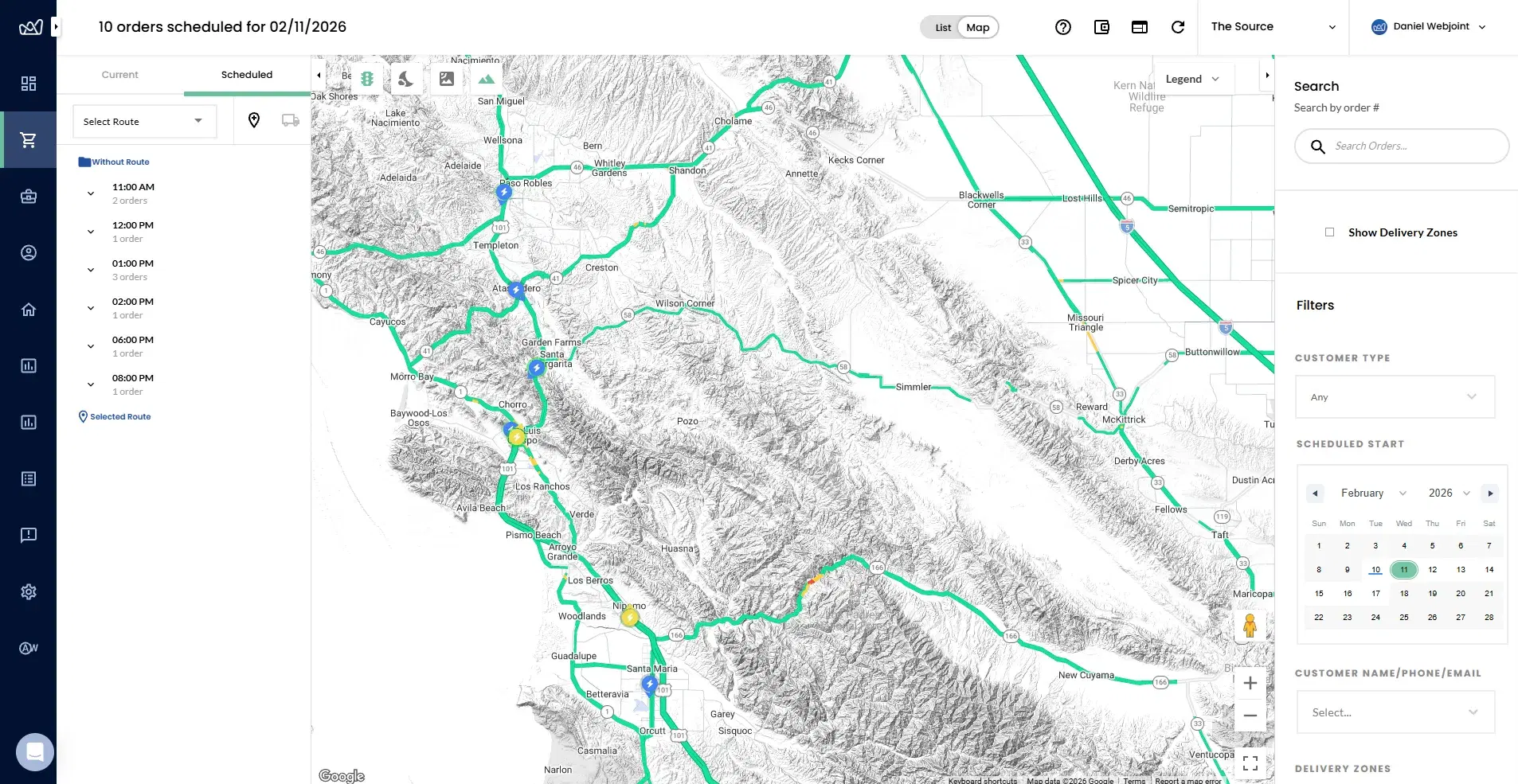
Plan Tomorrow's Routes Today
Dispatch supports both ASAP and scheduled deliveries. Scheduled routes can be planned ahead of time, pre-assigned to drivers, and adjusted as conditions change.
Move scheduled orders between drivers, update delivery windows, or reassign entire routes. Your scheduled dispatch view gives you full control over future deliveries.
Ready to take control of your dispatch?
Book a demo and we will walk you through dispatch modes, map-based rerouting, and bulk order management for your delivery operation.
Dispatch Management Questions
Common questions about dispatch control, order assignment, map mode, and managing high-volume cannabis delivery operations.
Take Control of Your Delivery Operations
See how dispatch management combines automation, manual control, map-based rerouting, and bulk order handling in one interface.