Delivery Zones
Define where you deliver, how much you charge, and what customers can buy, all based on location.
$5 Delivery
Min order $65
7 Zones
Active coverage
Scheduled
Mon, Wed windows
Smart Routing
Fastest driver
Hybrid Mode
Kit + Warehouse
Express Menu
Vehicle inventory
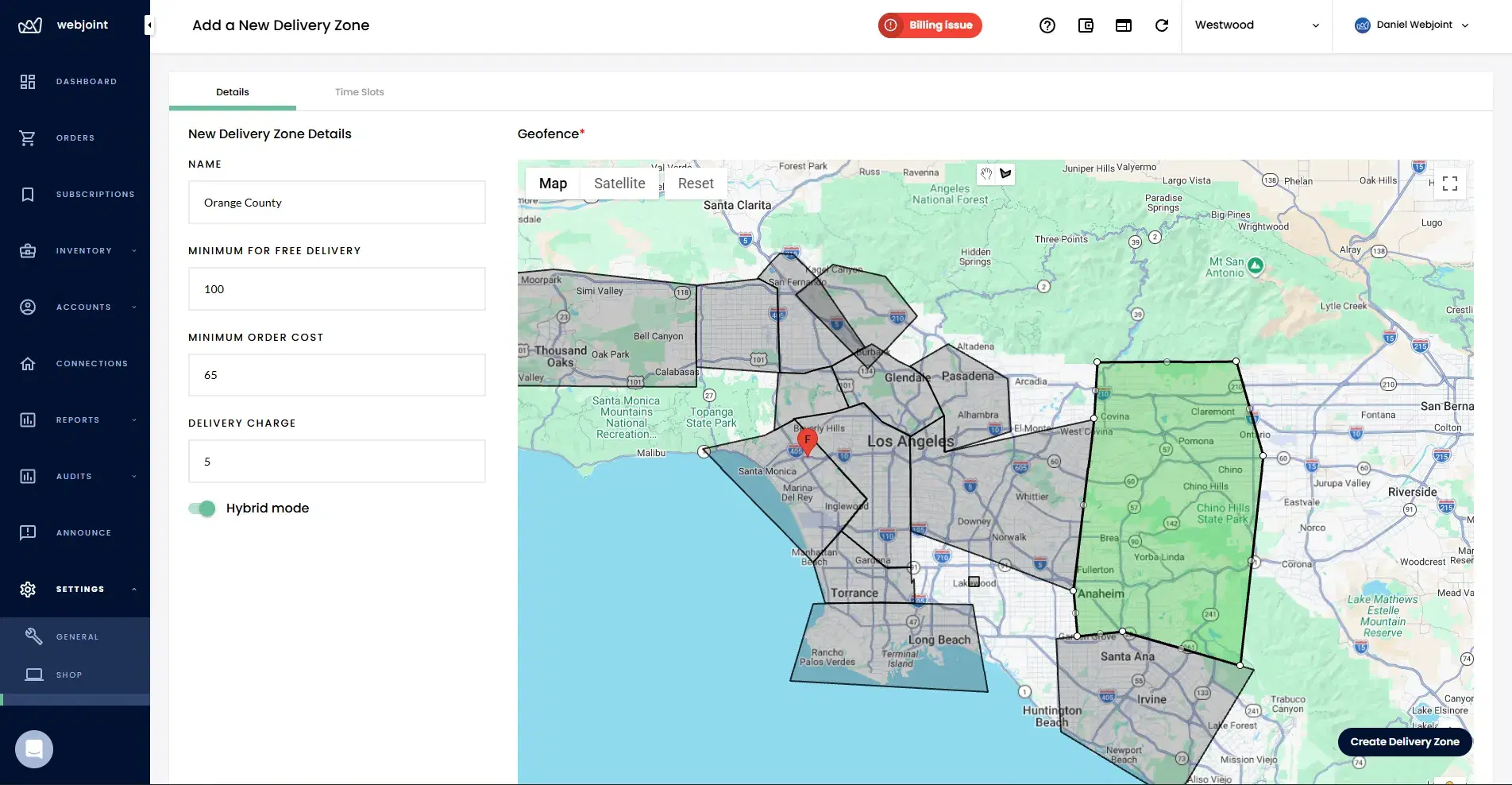
What Delivery Zones Control
Delivery zones in WebJoint are more than map boundaries. Each zone carries its own business rules that control operations, economics, and the customer ordering experience.
Custom Drawn Polygons With Zip Code Restrictions
Zones are created as custom-drawn polygons in the WebJoint backend. Each zone defines a geographic boundary on Google Maps that determines where your delivery service operates.
Within any zone, you can restrict service further using zip codes. This allows you to exclude specific neighborhoods or limit delivery to approved zip codes without redrawing the polygon. For example, you can serve most of a city but exclude areas where local regulations prevent delivery.
ASAP vs Scheduled Zones
Zone availability is determined by vehicle assignment. This keeps ordering options aligned with real-time driver coverage.
ASAP Delivery
Zones with active vehicles assigned are available for ASAP delivery. Customers in these zones can place immediate orders.
Scheduled Only
Zones with no vehicles currently assigned are available for scheduled delivery only. Customers can select a future delivery window but cannot place an ASAP order.
Customers only see ordering options that match available driver coverage. No ASAP promises you can't keep.
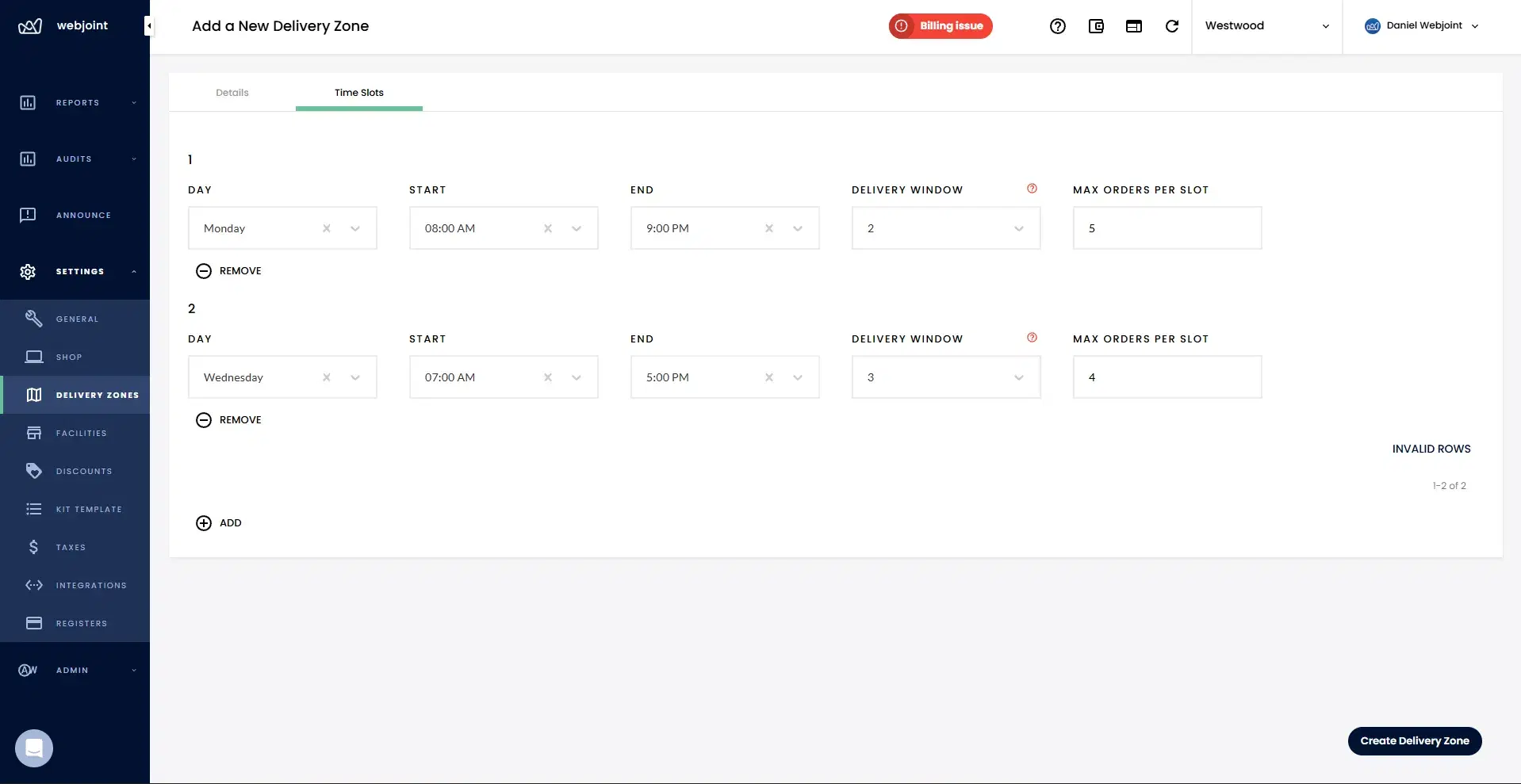
Zone Assignment and Flexibility
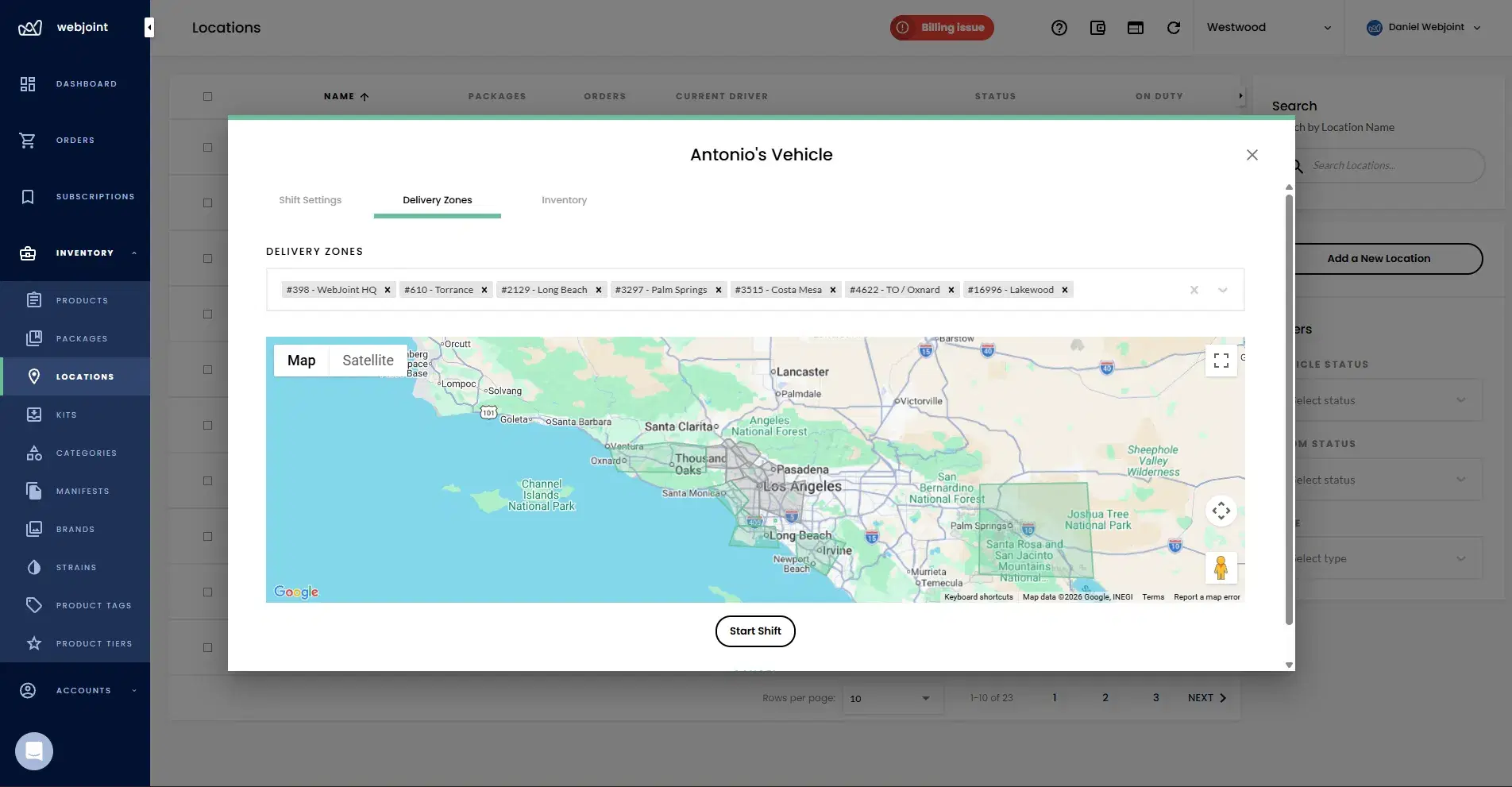
Vehicles can be assigned to multiple delivery zones. A single vehicle can cover several geographic areas during one shift, and zone assignments can be changed mid-shift without restarting.
Zone assignment ties directly into the Vehicle Management workflow. When a shift is started, the dispatcher selects which zones the vehicle will serve. This determines which orders the driver receives.
Mid-Shift Changes
Dispatchers can add or remove zones from a vehicle during an active shift. This supports dynamic coverage adjustments based on demand, driver availability, or zone closures.
Smart Zone-Based Routing
When an order is placed, WebJoint matches the customer's drop-off address to a delivery zone and evaluates which driver should receive it.
Routing Priority
Zone match
Customer address is matched to a delivery zone
Fastest driver
The driver who can reach the drop-off fastest is selected
Inventory check
Vehicle inventory availability is verified before assignment
Status filter
Paused or unavailable vehicles are excluded
See how delivery zones, routing, and inventory work together.
Hybrid Zones and Inventory Behavior
A hybrid zone allows drivers with inventory kits to accept two types of orders: those fulfilled from their vehicle inventory, and those that require a warehouse pickup.
Once you mark a zone as hybrid, it just works. The right inventory source is selected per order, whether that's the driver's kit or the warehouse. Your drivers don't need to do anything differently. Warehouse inventory is also used when a driver has no inventory kit assigned.
Kit + Warehouse
Drivers with inventory kits in hybrid zones can fulfill from both their kit and the warehouse. The system picks the best source per order.
No Kit Assigned
When a driver has no inventory kit, all orders in the zone pull from warehouse inventory automatically, regardless of hybrid status.
Location-Based Shopping Experience
Delivery zones directly affect what customers see when they visit your website. Customers outside all delivery zones cannot place orders and see a notification that they are outside the delivery area.
For customers inside a delivery zone, product visibility depends on the fulfillment method.
This alignment between zone, inventory source, and product visibility reduces failed orders and keeps fulfillment matched to what is actually available.
Express Menu
Vehicle inventory
Shows inventory currently available in the assigned delivery vehicle. Customers see only what the driver is carrying.
Full Menu
Warehouse catalog
Shows the entire warehouse catalog. Customers can order anything in stock, and the order is fulfilled from the warehouse.
Customers outside delivery zones see a notification and cannot place orders.
Delivery Zones Questions
Common questions about zone configuration, delivery fees, scheduled windows, hybrid inventory, and location-based ordering.
Build Smarter Delivery Zones
Request a demo to see how delivery zones control fees, minimums, scheduling, hybrid inventory behavior, routing logic, and what customers can order based on location.